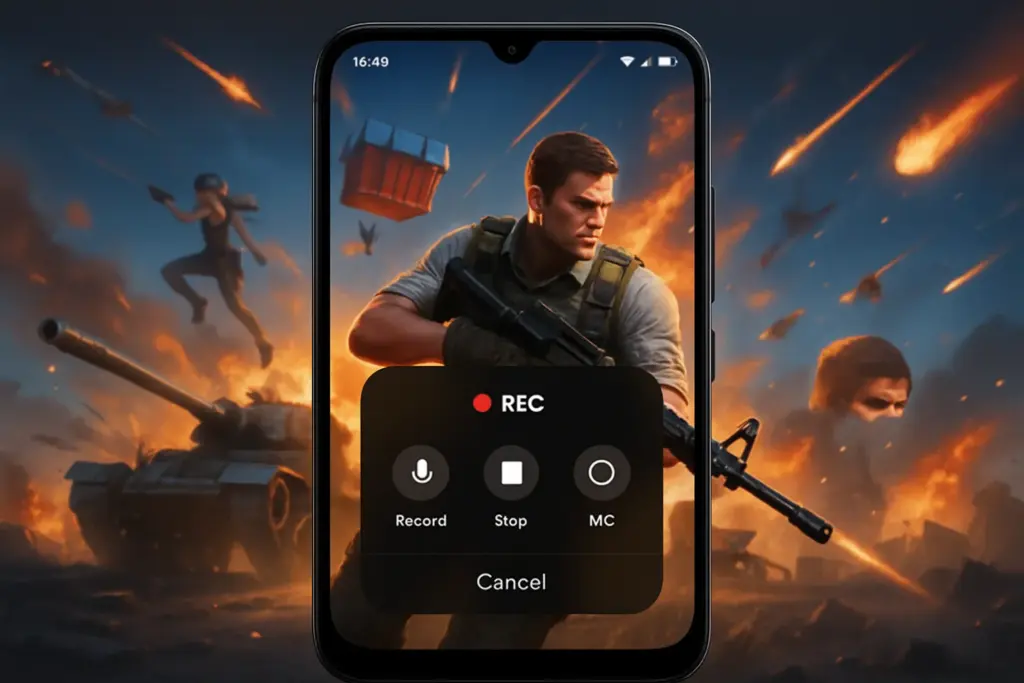
Android users can now enjoy a seamless way to capture their best gaming moments with the new auto screen recording feature. This guide will walk you through the steps needed to enable and optimize this functionality, ensuring you never miss those epic plays again.
Overview of the Auto Screen Recording Feature
The auto screen recording feature allows Android users to automatically record gameplay without manual intervention. This is particularly beneficial for gamers who want to share highlights or review their performance later. With this feature, you can easily capture your gaming sessions in high quality, making it easier to create content or simply relive intense moments.
Key Benefits of Using Auto Screen Recording
- Hands-free capturing of gameplay moments
- High-quality video output
- Easier sharing options with friends and followers
- Ability to review and learn from your gameplay
How to Enable Auto Screen Recording on Your Android Device
Follow these steps to activate the auto screen recording feature on your Android device:
- Check Compatibility: Ensure that your device is running Android 11 or later, as this feature may not be available on older versions.
- Open Settings: Navigate to the settings menu by tapping on the gear icon in your app drawer.
- Select Advanced Features: Scroll down and select ‘Advanced features’ or ‘System’ depending on your device.
- Find Game Launcher: Look for ‘Game Launcher’ and tap on it. If it’s not installed, download it from the Play Store.
- Enable Auto Recording: In Game Launcher settings, look for an option like ‘Auto Screen Record’. Toggle it on.
Configuring Your Recording Settings
You can customize several settings before you start recording:
- Select resolution (1080p recommended)
- Adjust frame rate (30 or 60 fps based on preference)
- Choose audio input options (internal audio, microphone, or both)
Avoiding Common Mistakes When Using Auto Screen Recording
While using auto screen recording can enhance your gaming experience, users often encounter pitfalls. Here are some common mistakes to avoid:
- • Forgetting to adjust recording settings before starting a game could result in lower quality videos.
- • Not checking available storage space may lead to interrupted recordings.
- • Ignoring battery levels can cause your phone to shut down during a critical gaming moment.
Tips for Optimizing Your Screen Recordings
To ensure you get the most out of the auto screen recording feature, consider these tips:
- • Use a high-performance mode while gaming for smoother recordings.
- • Clear out unnecessary files regularly to free up storage space.
- • Consider using an external microphone for clearer audio commentary during gameplay.
Scheduling Your Recordings
If your device supports it, schedule recordings ahead of time for specific games. This ensures that you’re always ready for those important matches without needing manual setup every time.
Key Takeaways
- The auto screen recording feature simplifies capturing gaming moments on Android devices.
- This feature is available on devices running Android 11 or later.
- User-friendly settings allow customization based on personal preferences.
- Avoid common mistakes by checking storage and battery life before starting a game.
Leave a Comment